.
Powered by Blogger.

Computer Tricks:

Our website is presenting Many tricks in the field of Computer. it also include many useful softwares regarding information and technology. All softwares are for education purpose, misuse of these tricks and software will be on your risk.

Facebook Tricks

Our website is presenting Many tricks of facebook. it also include many useful softwares regarding information and technology. All softwares are for education purpose, misuse of these tricks and software will be on your risk..

Wi-fi Tricks

Our website is presenting Many tricks about Wi-fi. it also include many useful softwares regarding information and technology. All softwares are for education purpose, misuse of these tricks and software will be on your risk..

Internet Tricks

Our website is presenting Many tricks regarding Internet. it also include many useful softwares regarding information and technology. All softwares are for education purpose, misuse of these tricks and software will be on your risk.

Laptop Tricks

Our website is presenting Many tricks about Laptop. it also include many useful softwares regarding information and technology. All softwares are for education purpose, misuse of these tricks and software will be on your risk.

Showing posts with label Windows tricks. Show all posts

How to get automatic drivers and updates for your Windows or Computer!


Windows can identify and download the following kind of updates on your computer:

  • Drivers

A driver is basically the software that communicates with the hardware device it is meant to address. Without them, the external components connected with the computer—for example, a mouse or external hard drive—will not work properly. Windows can check automatically whether new drivers are available for your components or not.
For the hardware that you have connected in the past, updated drivers might be available at a later stage; but these latest updates require manual installation. To install these updates, open Windows Update in Control Panel; look for updates; and install the recent updates available on your computer.

Information

Windows download a number of hardware and software updates for your computer, along with their detailed information and syncing capabilities. These details are for your understanding of the hardware or the device component.

When do Windows start download hardware and device automatically?

You can open the Windows update option anytime to check for any recent updates or availability of new drivers for your computer, especially if you have installed a new device on your computer.
If you want the Windows to update automatically, follow the instructions below:

  1. Click Start button and open the Devices and Printers folder, and on the Start menu, select Devices and Printers.
  2. Right click on Computer, and then select Device installation settings.
  3. Select Yes, do this automatically (recommended), and click to Save changes. If you find Yes is selected, select Cancel and close the dialogue box.

How to turn on and configure your Windows Update

To receive all the important updates on the computer ensure that the Windows Update is turned ON and configured properly. To know more, go to Turn automatic updating on or off.

Steps to install drivers and optional updates on your computer

Even if you have set Windows update to Automatic download and install, you might still not be receiving all the updated drivers on your device. These optional devices might include some important updates on the drivers that you might have installed. Remember Windows update doesn’t install optional downloads. If there is an optional updates available for your computer, you will be notified.
To get all the recent updates on your device, check once in a week. You can view the recent Windows update from the list and select the particular update you were looking for.
Here’s how you can do it:

  1. Go to Start button to open Windows Update. Type Update in the search box, and to view the list of available updates, select Windows Update.
  2. From the left pane, go to Check for updates, and wait until the Windows is finished looking for recent updates.
  3. If you find any available updates, then select the link below Windows Update to view information regarding the update.
  4. Go to Select the updates you want to install page, look for recent hardware updates, tick the check box for the drivers that you want to install on your computer, and then select OK. There are instances when you won’t be able to find recent updates.
5. Go to Windows Update page, and Install updates.

Remember


  • Windows Update will inform you regarding the recent updates of your devices. It will classify it under Recommended, optional or important. [To know more, go to How does Windows update automatically.]
  • Some updates will prompt a message asking you to restart your computer.
  • Windows Update will inform you if the installation of the update is successful.
 You can also get help from this video..

    How to Get Original Drivers For Your Dell.

    Command Prompt very useful and amazing Tricks


    command prompt tricks


    Command Prompt very useful and amazing Tricks

    Command Prompt is one of the most powerful tools in Windows; but sadly, it is also the most ignored one. Things were not always like this; but with the advent of GUI based operating systems, people started feeling that computing through command based tools was boring. This ultimately lead the command prompt into obscurity.
    Command Prompt is not only useful but also a tool that you should definitely give more respect to.

     
    1-Watch ASCII version of the Star Wars Episode IV movie:
     
    Surprised yet? You can watch an ASCII version of the full Star Wars Episode IV Movie right in your command prompt window. Just open command prompt, type a small code and the movie will start playing immediately. Read the complete instructions here.

    2- Create Matrix falling code effect:

     
    Have you watched “The Matrix”? Of course, you have. Then, you already know what I am talking about. In case you still don't know what I mean, take a look at this image! You can create the same effect in command prompt using just a few lines of code. Head over to this post for instructions.


    3- Make Folders that you cannot delete:

     
    Are you tired of accidentally deleting important folders? Well, if you are, you can learn how to make undeletable folders here.

    4- Shutdown your computer giving a funny reason:

     
    What if your computer shuts down saying that it is tired and doesn't want to work anymore? It would be fun, wouldn't it? You can do so by reading the instructions here.

    5- Know your IP address, DNS Server's address and a lot more about your Internet Connection:

     
    Command Prompt can even let you know your IP address. Just type ipconfig/ all in the command prompt and press Enter. Along with your IP address and DNS servers, command prompt will also return a ton of information like your host name, primary DNS suffix, node type, whether IP Routing ,Wins Proxy, and DHCP are enabled, your network adapter's description, your physical (MAC) address etc .

    6- Know if your neighbours are stealing your WiFi connection:


    command prompt codes
    Command Prompt can let you know if someone is connected to your Local Area Connection and using it. Just follow the steps:-
    1) Open your browser and visit http://192.168.1.1 or http://192.168.0.1 depending on your router.
    2) Find the tab that mentions “Attached Devices” or something similar.
    3) Find the computer name, IP address and MAC Address (sometimes called Physical Address or Hardware Address) of your computer using the previous trick.
    4 )Compare it with those displayed by your router in Step 2. If you notice some strange devices, then your neighbour has been sneaking in on your internet connection and it is best to add a password.

    These tricks work on Windows 8.1, Windows 8, Windows 7, Windows Vista, Windows XP and all previous versions of Windows.

    Lock a Folder with Password without any Software..


    Lock a Folder with Password without any Software.. 
     
    • Open Notepad( Start->Run->Notepad)
    • Copy the Code below and Paste it into Notepad. 
    cls
    :End
    @ECHO OFF
    title Folder Locker
    if EXIST "Control Panel.{21EC2020-3AEA-1069-A2DD-08002B30309D}" goto UNLOCK
    if NOT EXIST Locker goto MDLOCKER
    :CONFIRM
    echo Are you sure u want to Lock the folder(Y/N)
    set/p "cho=>"
    if %cho%==Y goto LOCK
    if %cho%==y goto LOCK
    if %cho%==n goto END
    if %cho%==N goto END
    echo Invalid choice.
    goto CONFIRM
    :LOCK
    ren Locker "Control Panel.{21EC2020-3AEA-1069-A2DD-08002B30309D}"
    attrib +h +s "Control Panel.{21EC2020-3AEA-1069-A2DD-08002B30309D}"
    echo Folder locked
    goto End
    :UNLOCK
    echo Enter password to Unlock folder
    set/p "pass=>"
    if NOT %pass%==pak123 goto FAIL
    attrib -h -s "Control Panel.{21EC2020-3AEA-1069-A2DD-08002B30309D}"
    ren "Control Panel.{21EC2020-3AEA-1069-A2DD-08002B30309D}" Locker
    echo Folder Unlocked successfully
    goto End
    :FAIL
    echo Invalid password
    goto end
    :MDLOCKER
    md Locker
    echo Locker created successfully
    goto End

    • Password for the above batch file is set to pakworld. You can change it to anything by editing mixworld to your choice in following line:
    if NOT %pass%==pak123 goto FAIL

    • Now Save this file with a name anyname.bat. I am using pakworld.bat as my file name in this matter.

    • Now a Bat file is created.
    •  
      Now double click on bat file and it will ask you for password and Enter Password(for the above code it is pak123).
      • Now you will see a folder named LOCKER in the same location where you saved anyname.bat(mixworld.bat here) file.

       
      • Open it and fill it with the data you wanna hide.

      • When you are done with the above press Y in the bat file and hit Enter.
       
        • Now Close this Bat file window and locker folder will hide itself.

        • Again to Edit Locker Folder double click pakworld.bat file and enter password.
        You can do it as many times as you want. :)
         

    How to hide or unhide a drive in Windows


    How to hide a partition in Windows?

    • Right-Click on My Computer [Computer in Windows Vista and Windows 7]
    • Click on Manage
    • From the list of options Click on Disk Management that will be located in the left-bottom section
    • All your hard disk and its partitions will be show in the right hand side
    • Right-Click on the partition that you want to hide and select "Change Drive Letters and Path"
    • Click on "Remove" and click "Yes"
    • Your drive will now be hidden in my computer

    To unhide the drive :

    • Go to Disk Management Right-Click on the hidden partition [there will not be a drive letter on the hidden drive] again select "Change Drive Letters and Path"
    • Click on add and select an appropriate drive letter.
    • Click Ok
    • Now the drive is unhided.
    You can also get help through this video...


    I am sure this video will help you to hide a drive in windows

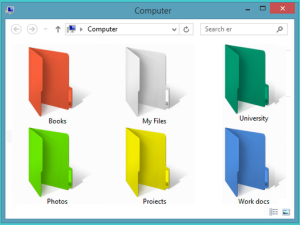
    Customize folders with different colors in windows


    Customize folders with different colors in windows


    There are many softwares available today in markets and over the INTERNET which can customize a folder in different colors that it looks so attractive as well as it becomes very easy to use.As similar to that, here I am going to share a software through which you can easily assign your favorite colors to your desired folders in order to differentiate them easily and to ease of access.


    Customize Folders with different colors:

    Here i shall teach that how we can make a folder colorful. Follow my steps.

    1.. First install the software Folder Colorizer. It is tested and 100% virus free. You can download it from here : DOWNLOAD FOLDERCOLORIZER.

    2.. Now after installing the software, simply right click on any folder . Here when you right click on folder, you will see a new option in the context menu i.e. Colorize !. Now simply go to that option and one submenu will appear. Now choose any color you want to assign to this folder.
    Although it is a free software for everyone to use it but while you will use this software for the very first time , it will just ask your email id for activation of this software. But no need to worry because you wont need to confirm the activation by logging in to your e mail account. Even if you don’t wish to share your e mail id with developers of this software you can do it because product will be activated automatically once you enter any email id. So you can also enter any fake id if you want.
    For upper all procedure understanding i also show in below snapshot..

    Folder Locker for Windows.. 100% free working


    Folder Locker for Windows.. 100% free working


    As we know that some files and folders we consider private.These are the files that we don't want other people using to know about. Windows offer no way to protect our private information, most of us get in situations when these files are opened by unwanted people.

    Now you can store this information in a hidden folder. The only problem is that anyone can easily search the contents of a hidden folder using Windows Search itself.The only viable solution is storing this content in a password locker folder so that only those people knowing the password of the folder that can access it. There are many folder locking programs available online but the problem is that most of the good ones. 
    If you too find yourself in a similar situation, you can try Folder Locker, a password protector for Windows folders that is not only free but is also portable meaning that it does not need to be installed. Just click on the exe. file and the program will start running. I have created this program based on suggestions and feature requests that I have received by email over the last two years.

    Folder Locker:

    Folder Locker offers each user a protected folder that can only be opened by entering the password in Folder Protector. Unlike most security programs, Folder Protector is small in size and does not show the folder that it is protecting. This gives an additional advantage that people who don't know the password do not have a target to try and hack their way into. As the software is portable, you can hide it or even delete it after protecting your folder and no one will have a clue that it was used.


    Download Folder Locker:

    Download Link For: Windows Vista, Windows 7, windows 8 


    Windows Compatibility: This program has been tested on Windows 8, Windows 7, Windows Vista.