.
Powered by Blogger.

Computer Tricks:

Our website is presenting Many tricks in the field of Computer. it also include many useful softwares regarding information and technology. All softwares are for education purpose, misuse of these tricks and software will be on your risk.

Facebook Tricks

Our website is presenting Many tricks of facebook. it also include many useful softwares regarding information and technology. All softwares are for education purpose, misuse of these tricks and software will be on your risk..

Wi-fi Tricks

Our website is presenting Many tricks about Wi-fi. it also include many useful softwares regarding information and technology. All softwares are for education purpose, misuse of these tricks and software will be on your risk..

Internet Tricks

Our website is presenting Many tricks regarding Internet. it also include many useful softwares regarding information and technology. All softwares are for education purpose, misuse of these tricks and software will be on your risk.

Laptop Tricks

Our website is presenting Many tricks about Laptop. it also include many useful softwares regarding information and technology. All softwares are for education purpose, misuse of these tricks and software will be on your risk.

Showing posts with label Computer Tricks. Show all posts

How To Increase the Computer Speed as much as You Want!


The following tips are provided to help you improve the computer speed performance and increase the life period of your system.

1. System Cleanliness
Not only hardware cleaning is referred to with system cleanliness, but also the soft-junk that accumulates due to unmindful Many users fill up almost their entire hard drive with what amounts to junk. This will over some time compromise the speed of your computer.

    • Begin with removing unused and the unwanted program. Through Control Panel, choose Programs, and then Uninstall a Program. (Make sure you install them completely with the help of some third-party software uninstaller.)
    • Delete cookies that are left by websites to keep a track of their visitors. Just punch in the word “cookies” in Start menu to start the removal process with. The folder that will open up will contain cookies files. They are unimportant for you and might interfere with the normal speed of the system.

2. System Cooling
If your system is heating up too quickly, or you are living in a place which is overtly hot, responses of commands to fulfill computer operations can get unexpectedly slow. Ensure sufficient uninterrupted air-flow. Read in detail here.

3. System diagnosis for malware and its removal
It’s not surprising that malware might be giving you a tough time in the form of much delayed system responses; after all, the term itself starts with “mal” meaning bad. Get into a good habit of routine system scan to locate if any new malware has made its appearance since you last updated your anti-virus. Get rid of it even before it can actually lead to deterioration in speed of your machine.

4. Disc defragmenting
On a monthly basis, use disc defragmentation utility to streamline your drive. The process eliminates the gaps attributed to the deleted or moved files, or uninstalled system applications and software.
The process shows better results for the users who extensively perform the above actions, and for such users, frequency of defrag must be increased.

5. Stopping automatic launch of software on start up
Witnessing loss of control as the programs choose to launch on their own during system start up? Just use Windows System Configuration Utility. Launch it by clicking the Windows button; punching in Run, and pressing enter key. It’s time to type “msconfig” in the Run when prompted to type. The “Startup” tab is now to be used to block the programs that you don’t want just after the system starts, except for programs like your trusted Antivirus.

6. Increasing RAM
RAM of your system is directly related to improving the system speed if everything else is in shape. You can add RAM up to the system’s capacity.

 You can also see this video for Help.

How to Install More Than One Operating System on a Computer..


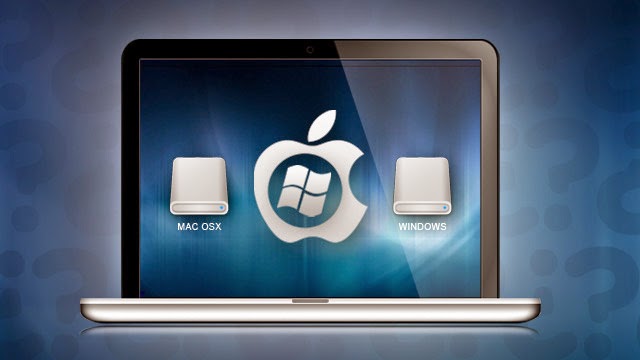
When one operating system is just not enough for your needs, or you have some peculiar need that could be met only when you have the other Windows OS version on the system, you can get two OS simultaneously, provided your computer has sufficient free memory. To know more, go to Can I have more than one operating system on my computer (multiboot)?
The multiboot or dual-boot process facilitates this need. The multiboot process requires separation of computer hard drives partition on each operating system. To know more about the partition, go to Create and format a hard disk partition.
After installing another operating system on your computer, you can decide which one you want to run.

Steps to install Windows using a separate partition

Before installing your Windows OS, make sure that you disable all your antivirus and other applications. Remember to take backup of your important files in CD/DVD or a USB flash drive. Ensure that you have your 25 character Windows product key. You can find the key in the installation disc of your Windows DVD or in the conformation email if you have purchased the Windows 7 online. To know more about the instructions on how to install Windows 7, go to Installing and reinstalling Windows 7.
To begin, follow the instructions carefully:

    1. Turn on your computer so that it performs normally, and then perform any one (that applies) of the following steps:
      • If you have downloaded the Windows 7 online, then go to the installation file you downloaded and then click it (on screen it will be identified as an Application file below the Type column).
      • If you have a Windows 7 installation disc, then insert the disc. Setup will begin automatically. If it fails to open automatically, select Start button, click on Computer, double click on the DVD drive that has your Windows 7 installation disc, and click on setup.exe file.
      • If you have saved the Windows 7 installation file on a USB flash drive then insert the drive on the computer. Setup will begin momentarily. If it fails to start, select Start button, click on Computer, click the drive twice, and double click setup.exe.
    2. Go to Install Windows menu, and select Install now.
    3. Visit the Get important updates for installation page. It is recommended that you get the latest updates on your computer. Doing this ensures successful installation and protects your PC to undesired threats.
    4. Go to Please read the license terms page. To accept the license terms, select I accept the license terms.
    5. Open the Which type of installation do you want? page and select Custom.
    6. Go to Where do you want to install Windows? Page, Select the disc or the partition where you want your new Operating system to install.
Ensure that you install your new Windows on a separate partition.

      1. Select Next start the installation process. Once the installation process begins, you will receive a compatibility report.
You can also see this video for help.
         

    How To Install Dual Operating Systems

How To Remove Auto Run Virus From Computer or Laptop!


How To Remove Auto Run Virus From Computer or Laptop!

AutoRun is a conventional feature in Windows operating systems that facilitates external media like the USB Devices, Memory Sticks, DVDs, and CD-ROM etc. to start on with the programs stored in them automatically. AutoRun is a type of virus that engraves itself along with the external flash drives connected with the user’s computer. Autorun.inf is a file which is present in the main directory of the USB Device or CD ROM. It includes a list of commands that get executed as soon as the media is inserted into the drives of the PC.
Autorun.inf file appears as system file that is read-only and hidden. The virus also disables the folder option. This is methodically done by the virus to defend itself. Removing this virus is essential since if it is kept for long, it might affect your sensitive information and allow malicious files to attack your system.

Guide to Delete/Remove.inf Virus from USB or Hard Disk Drives in Windows Using Command Prompt:

Open command prompt in your PC. (Press Windows + R. type cmd and press ENTER).

A window appears on your desktop. Type “cd\” (without inverted commas). 
The parent directory of C:\ drive would appear.

Then, type atttrib -h -r -s autorun.inf and press enter.

After that, type del autorun.inf and press enter.

Repeat the same methods with other drives i.e D:/, E:/, etc.

Then, reboot your computer
After following these steps, you’ll be able to get rid of AutoRun virus. 

You can also get help from this video..


How To Detect Computer Virus and Their Removal..


How To Detect Computer Virus and Their Removal..

A virus can easily intrude into a computer through a data storage device that may carry infected data. If a computer is not having an antivirus software installed in it, and is connected to infected device, then the chances of virus intrusion are quite high.

What is a malicious software or computer virus?

A computer virus or malicious software is a set of programs, which can easily copy itself and hence infect your computer with its clone. If any file on the network gets infected by the virus, then the virus can spread very easily. It is due to the fact that the file can easily be accessed on any other computers too.

What is computer virus removal (Antivirus) software?

Antivirus software is a program that is used to detect and delete malicious software like viruses from a computer.
Usually, the antivirus software uses two methods to detect the viruses. One is via virus signatures, and other one is via computer’s memory (RAM), hard drives, floppy drives. Both the methods protect your computer from the viruses stored in the computer database.
The second method is more effective as it can detect those novel viruses that antivirus security vendors have yet to create a signature for. It is based on a heuristic algorithm to find out viruses based on common behaviors.
A computer user can easily download and install antivirus software from the Internet and protect the computer. Although it is very easy to download software for viruses, but it should always be done under an expert’s guidance.
People who don’t find it easy to download and launch an antivirus software can take help from online antivirus support providers. If you are also facing issues in deleting virus from your computer, then you can leave your comments below.

Lock your Computer with just a one mouse click.. Useful Trick


Lock your Computer with a mouse click


(Just Press Windows +L)

OR


Just Follow the simple step >>
1. Right click
an empty spot on the desktop, point to New and click Shortcut.

2. In the Create Shortcut dialog box, type the following in the 'Type the location' of the item text box:
rundll32 user32.dll,LockWorkStation
3. Click Next
4. In "Type a name for this shortcut", type "" (any name as u wish) and Click Finish
5. This will Create a shortcut in your Desktop.
6.Now each time when you want to lock the computer , Just click on this shortcut.

Hide Your Files or Folders Using Command Prompt. Very useful..


Hide Files or Folders Using Command Prompt


Most important thing is that, once hidden with this method, the files/folders cannot be viewed by any search options even if you click "Show All Hidden Files and Folders". 
Hiding the most wanted files and folders is very important nowadays and it's really a important job. In order to make this tedious job an easy one, i'm going to deliver you a the trick now.

For Example: You have a folder named "mypictures" and this folder is stored in (Disk Drive E). You think that it should not be seen by strangers who use your PC.


For that you need to follow the following instructions
  1. Press windowkey+R: Run command dialog box appears.
  2. Now type "cmd" and hit enter. A command prompt window displays.
  3. Then type "attrib +s +h E:\mypictures" and hit enter.
  4. The folder "mypictures" will be hidden (Note: It cannot be viewed by any search options)

    Note: (To view this folder again, use the same command but replace '+' with '-' on both flags 's' and 'h')